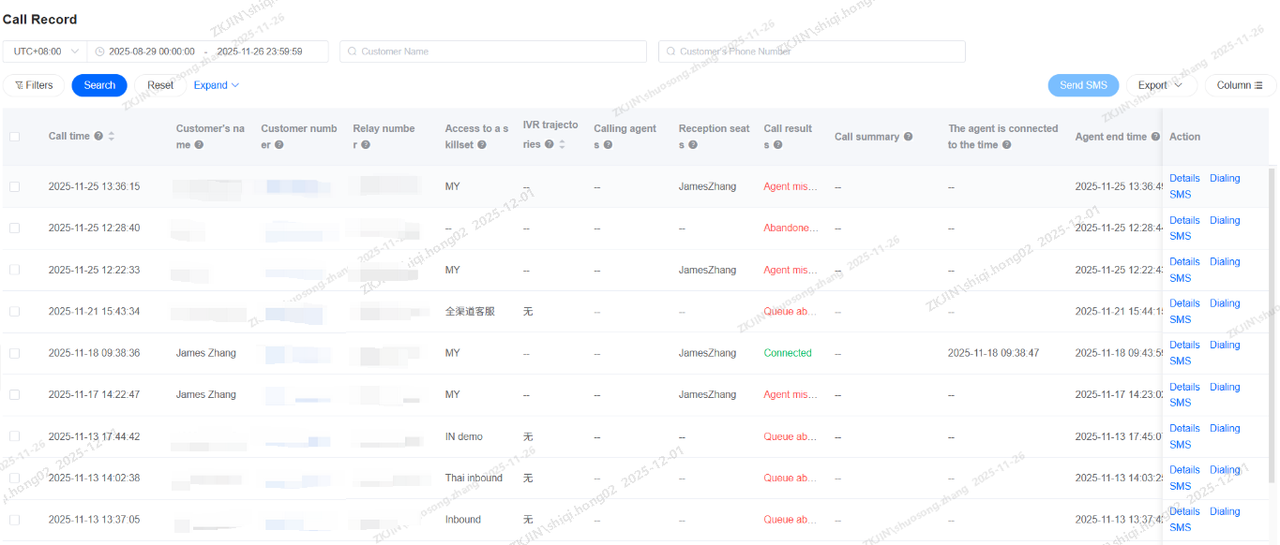


1.Outbound Campaign (Bot)
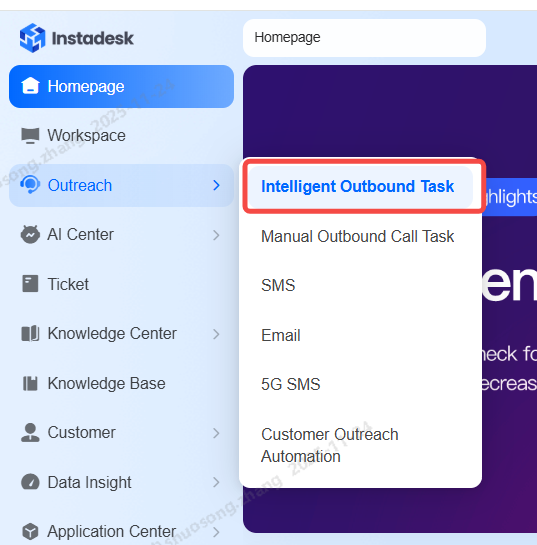
When you need to use a pre-configured outbound bot (NLP or LLM) for bulk calling, you must create an Intelligent Outbound Task. Navigate to Outreach > Intelligent Outbound Task
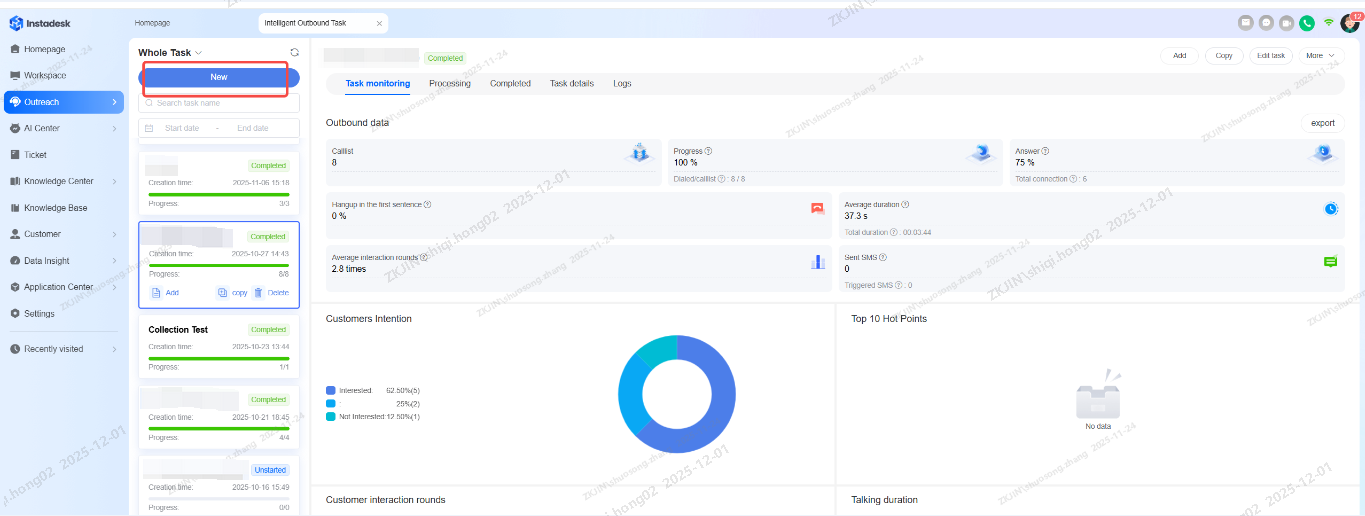
All outbound tasks, along with their related operations and data, are displayed within the Intelligent Outbound Task interface.
1.1 Create Intelligent Outbound Task
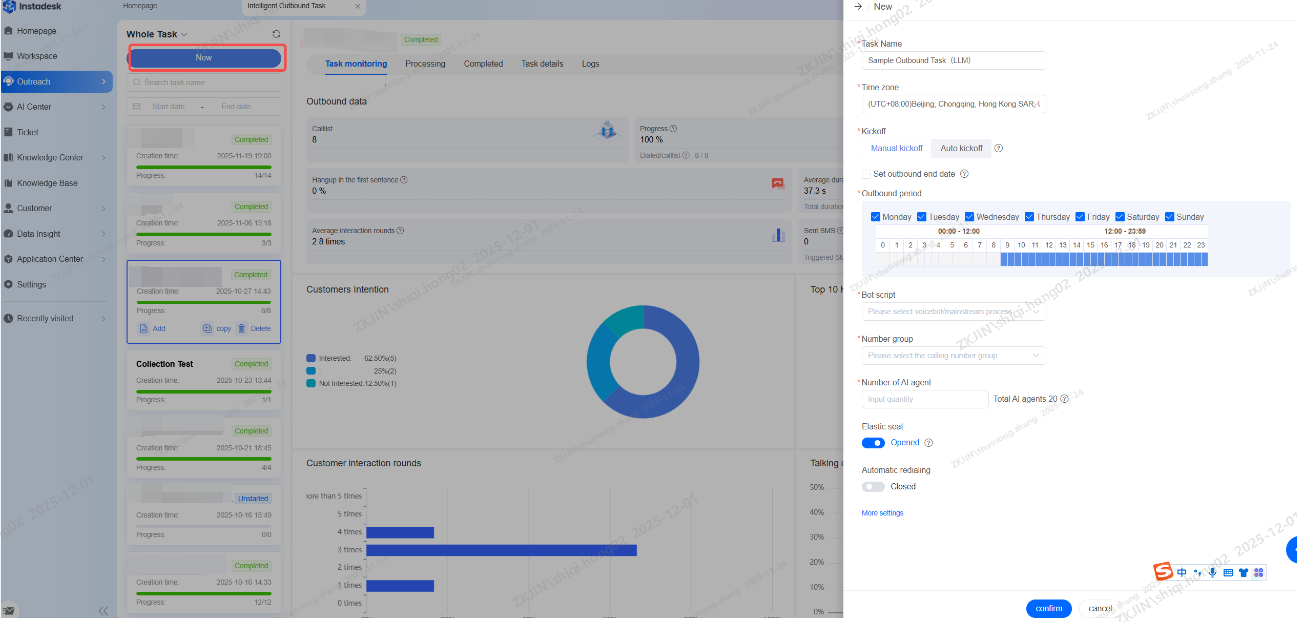
Click New to create an automated outbound task. You must define the following basic settings, as shown in the diagram:
-
Task Name
-
Time Zone
-
Re-dial (Enable/Disable)
-
Calling Time
You must also select the bot responsible for the task and the specific script it will use.
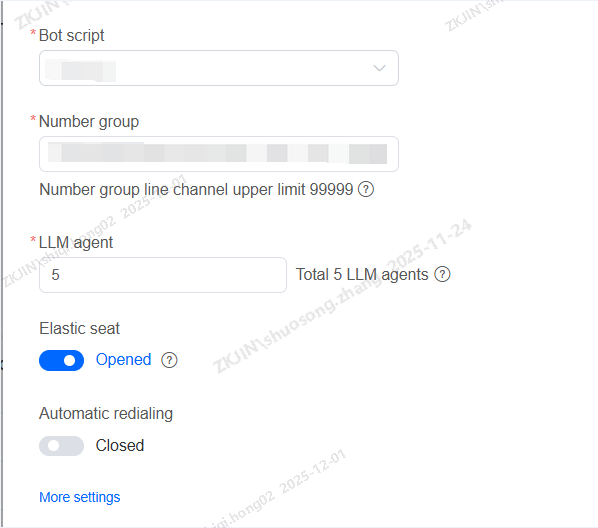
Concurrent Agents determines the number of bots that can make calls simultaneously. To handle a large volume of calls in a short time, estimate the required concurrency based on the average call duration.
The system also supports Flexible Agents (automatically adjusting concurrency based on call volume) and automatic redialing.
1.2 Launch Intelligent Outbound Task
After creating the task, you must import or manually enter the customer list to start calling
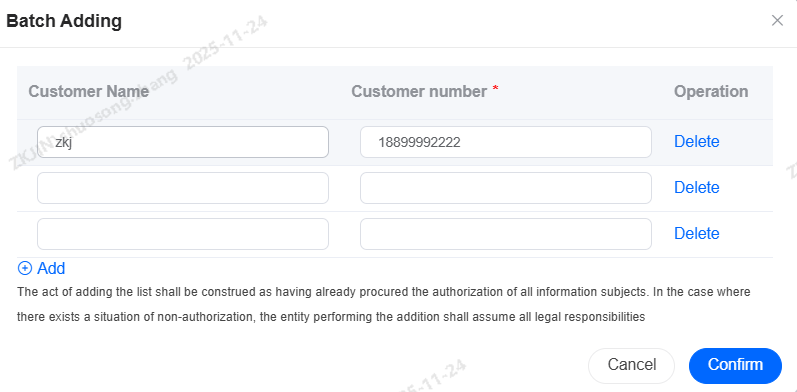
Click Batch Adding to manually enter customer names, phone numbers, and other required variables. This is typically used for small-scale test tasks.
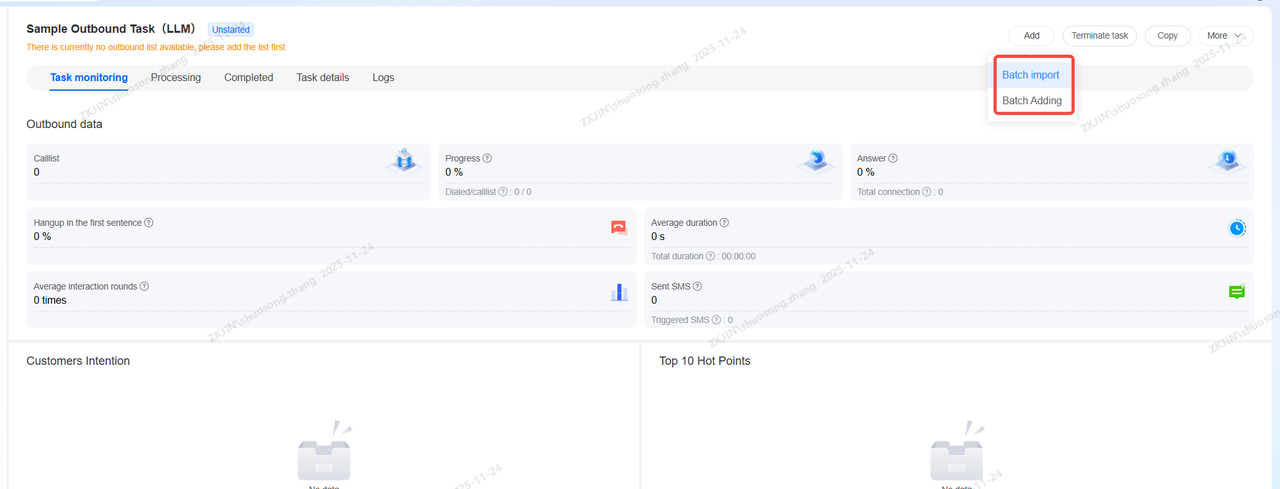
Select Batch Import to upload customer information, phone numbers and variables using a template. This method is designed for large-scale outbound tasks.
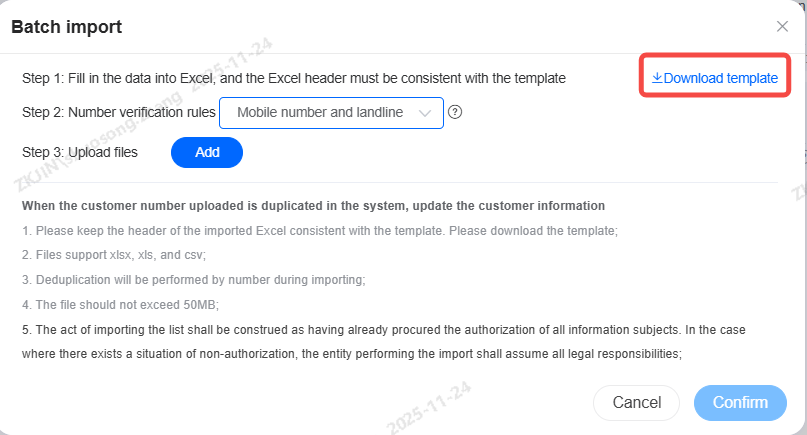
After importing the name list, click Start Task. The system will automatically start the outbound task using the selected bot, its workflow and the provided customer data. If Auto-start is enabled, the task will start automatically within the configured time window as soon as the list is imported.
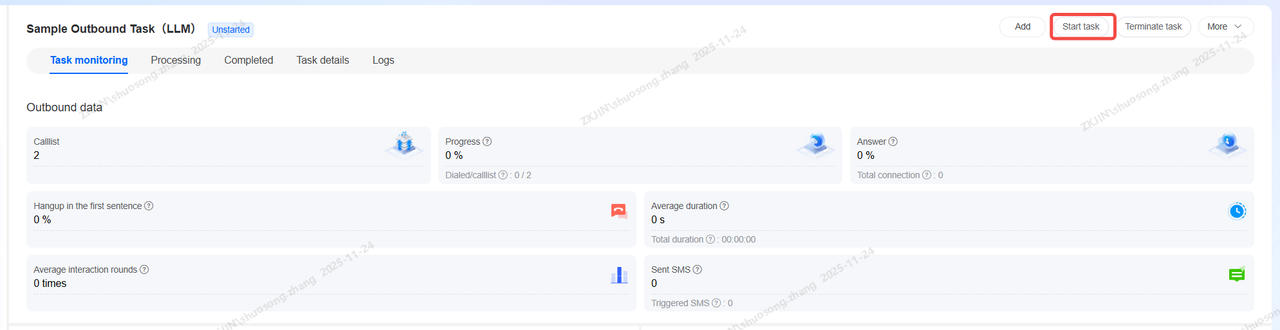
During the outbound task, you can monitor the active calls in real-time by clicking the In Progress tab and view the completed call results (Includes audio recording).
1.3 View Intelligent Outbound Task Results
Once an outbound task ends, you can select it from the Intelligent Outbound Task interface to view its overall performance data.
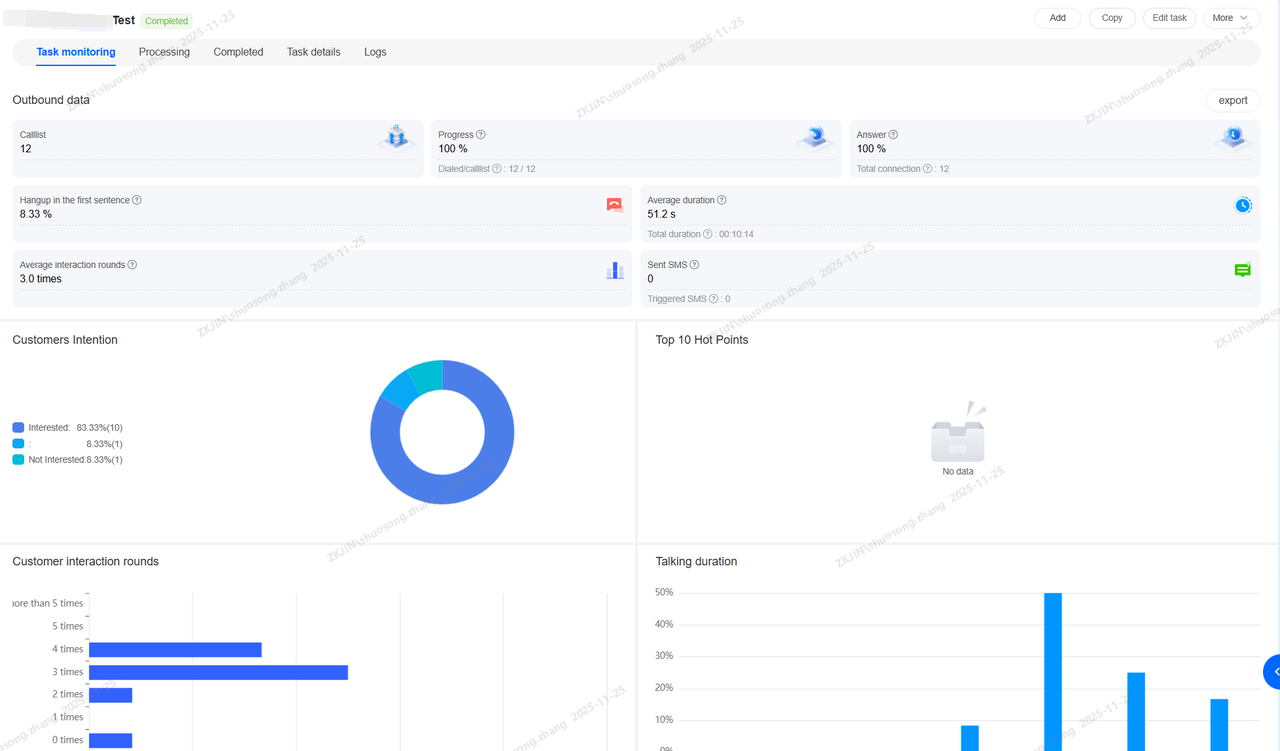
The Task Monitor displays key metrics such as total calls, answer rate, and average call duration
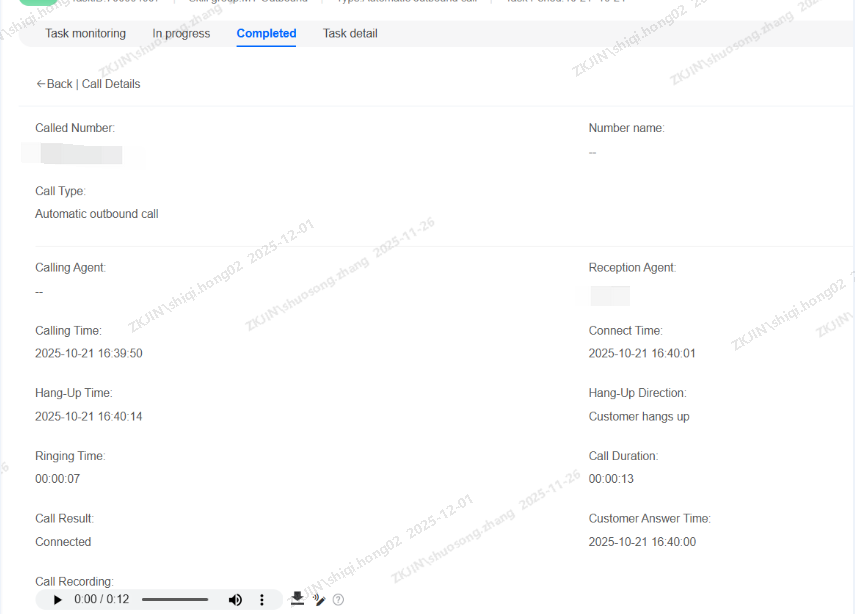
To examine the details of a specific call, click the Completed tab to view the call records
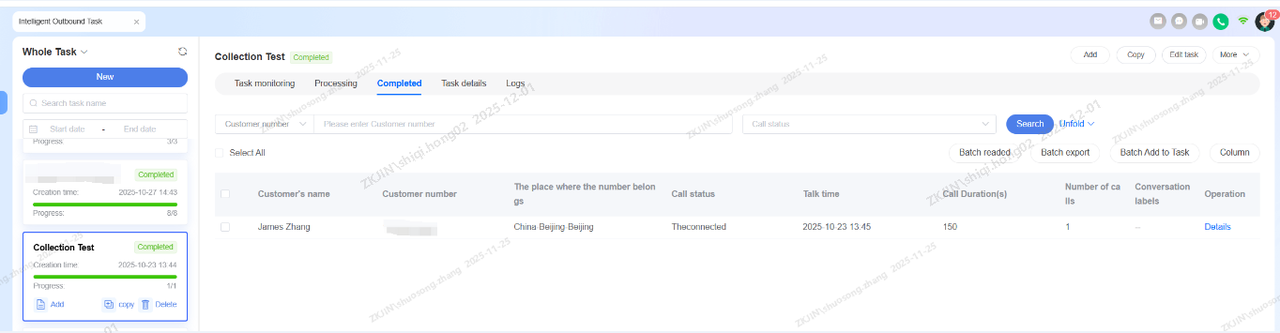
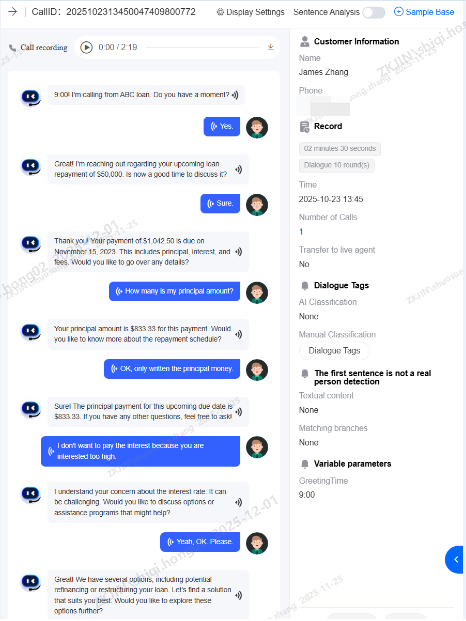
Click Details button to access the full recording, its transcript, and see how the bot interpreted each of the customer's response
-
Outbound Campaign (Manual)
When a support supervisor or administrator needs to create a bulk manual outbound task by uploading a list of customer names and numbers for agents to call, they use the Manual Outbound Call Task module within Outreach.
Click New to create a new manual outbound task
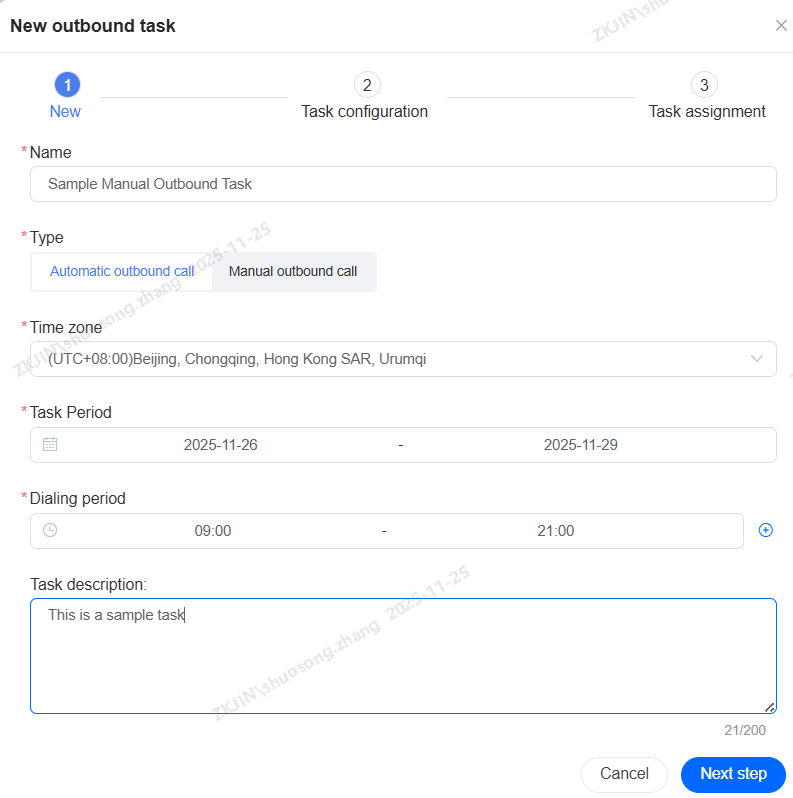
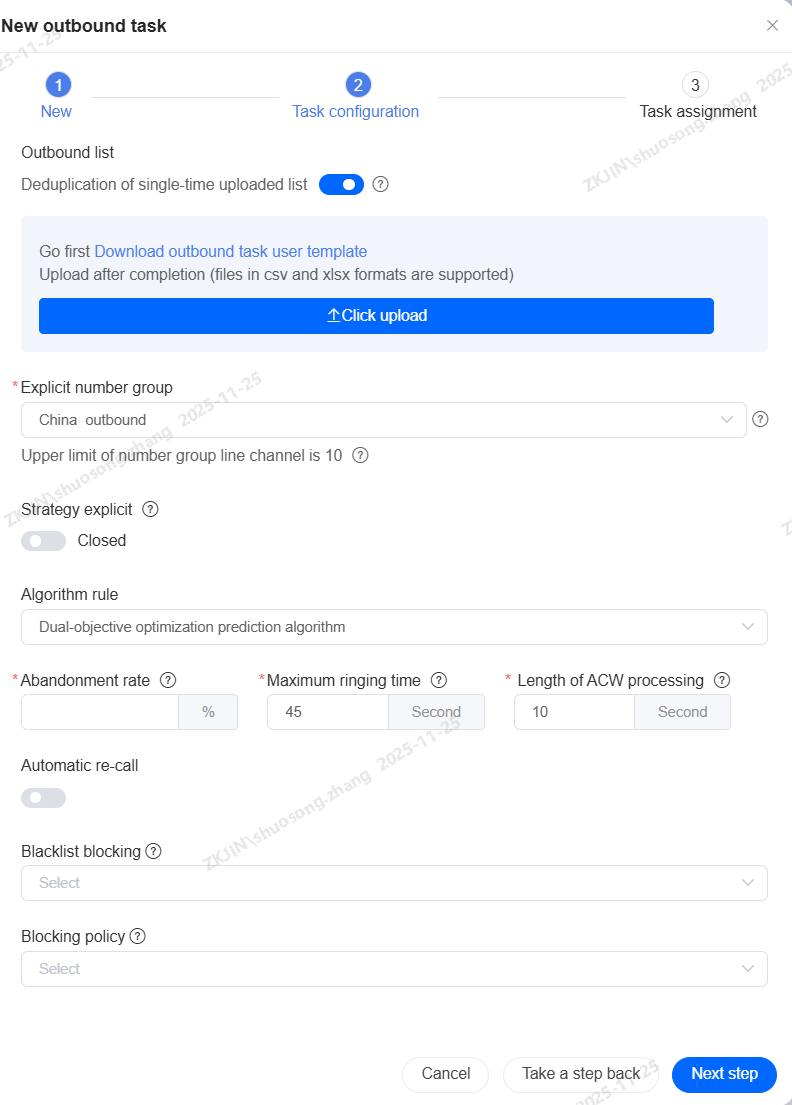
Next, upload the customer list for the task (you can use the template provided by the system)
You must select the agent group (Skill Group) for the outbound task, the dialing mode (progressive or predictive), and configure parameters like call abandonment rate, maximum ring time, and post-call time. You can also set auto-redial rules and blacklist rules.
By configuring a series of manual outbound tasks, you can finally launch the task. Before launching, you must select the assigned skill group or agent and click Submit to begin.
Note: The number group selected in the previous step must be bound to a valid outbound number. Otherwise, the manual outbound task cannot be launched.
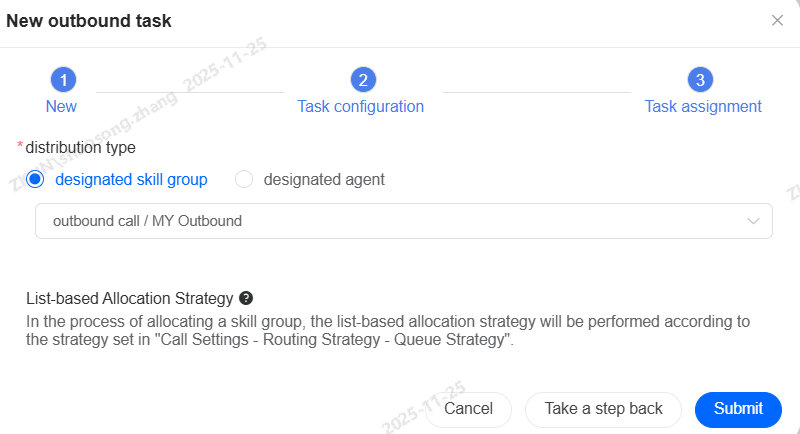
Once created, you can start the task by assigning the outbound task to the designated skill group or specific agents. Agents will receive the task and can manually select calls or have them assigned automatically (common in predictive dialing mode) to dial the customer list.
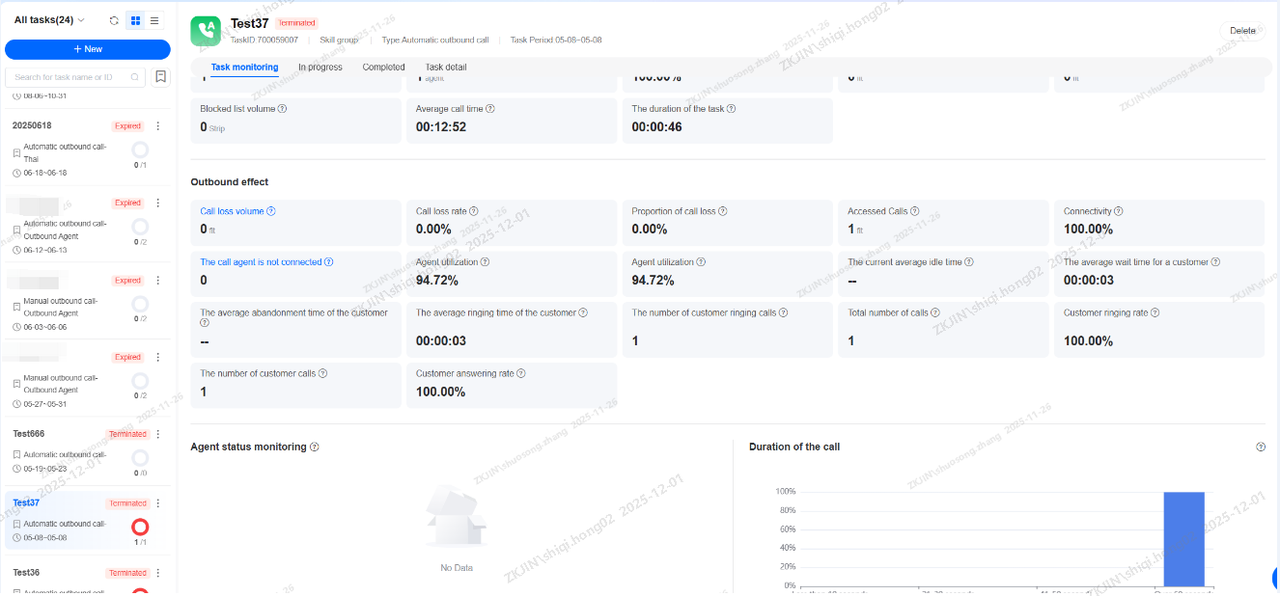
You can view ongoing outbound task by clicking the In Progress tab.

Once a task is completed, you can view its details from the completed list. Click the circle button to access specific call information, listen to the recording, and view its transcript.

2.1 Outbound Call Statistics Overview
After an outbound task is assigned and completed, team managers typically need to view its specific details and performances. This can be done in the system's Data Insight module
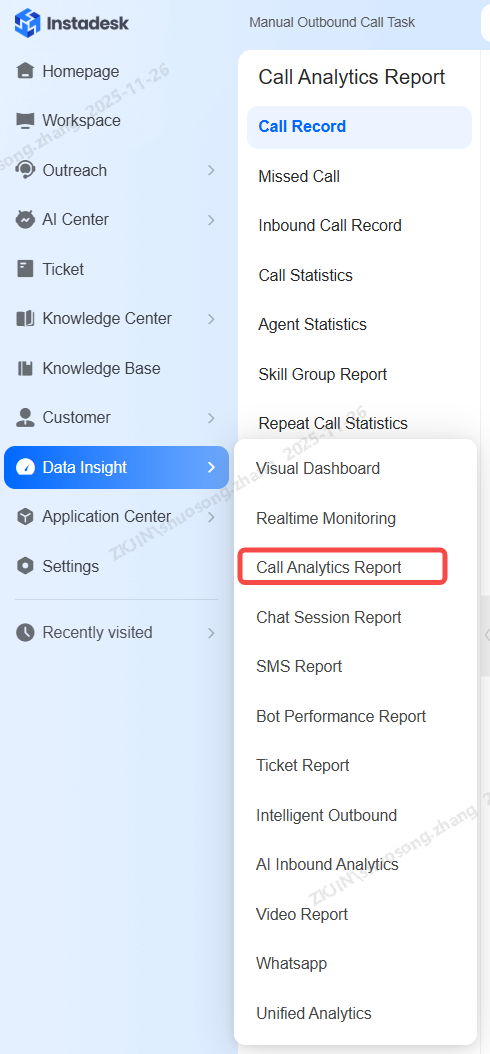
Click on Call Analytics Report to view the recent outbound task and all recent manual call activities
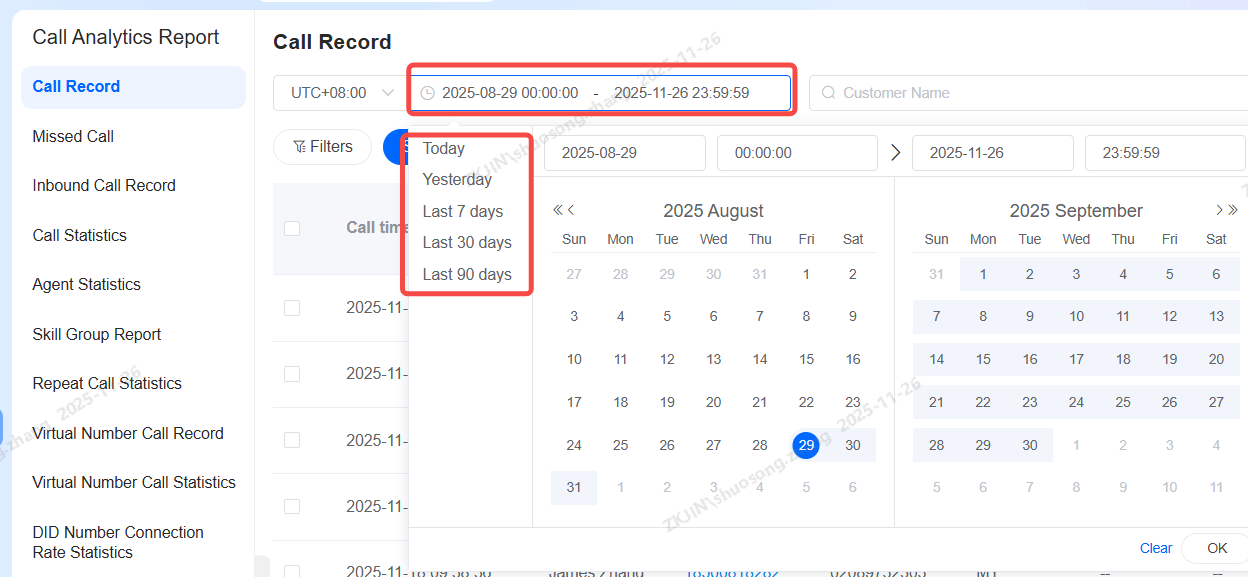
Select the appropriate time period to view the associated records, call recordings, and transcripts.